Note: This article was originally published on my Hashnode blog.
Memgraph Lab is a visual user interface that helps you explore and manipulate the data stored in Memgraph. Font Awesome is a popular icon library. If you ever tried to use a Font Awesome icon as a background image for a node, you might have noticed you were not able to do that by using the icon directly. Memgraph Lab doesn’t support SVG format at this time, but it supports PNG, JPEG, GIF and WEBP formats. Here is a workaround for this problem.
Step 1: Find and Download the Icon
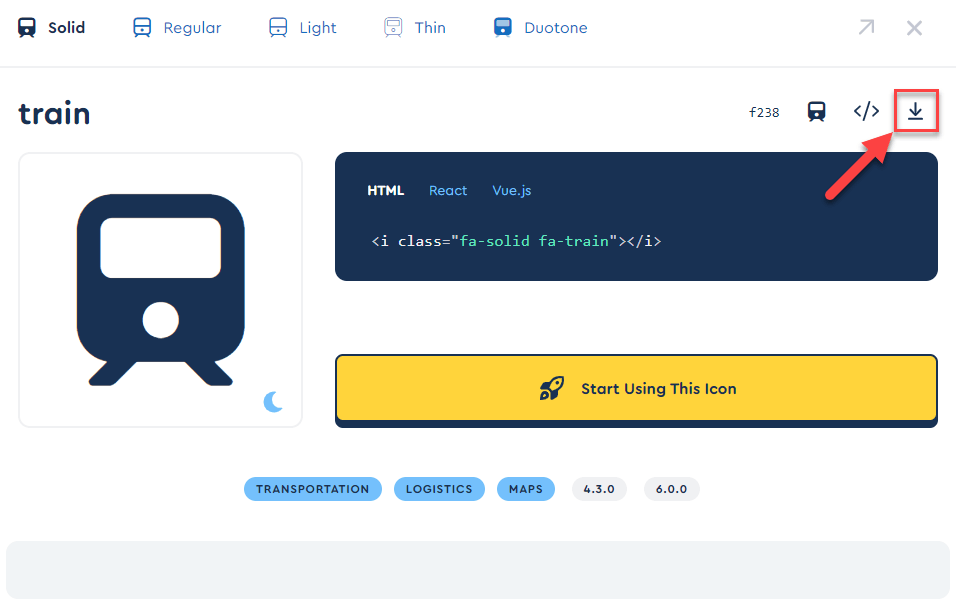
Go to the Font Awesome website, locate the icon that you want to use as a node background, and download it as an SVG file.
Step 2: Convert SVG to PNG
Convert the SVG file to PNG using your favorite image editing program, or use one of the many online file conversion services. You can use programs such as GIMP or Inkscape for the conversion.
Step 3: Upload PNG to a Web Server
Upload the PNG file to a web server so that you can reference it as a node background. If you are using an image hosting service, make a note of the URL. Some services use URLs unrelated to the image name, which can be hard to find later.
Step 4: Edit the Graph Style Editor
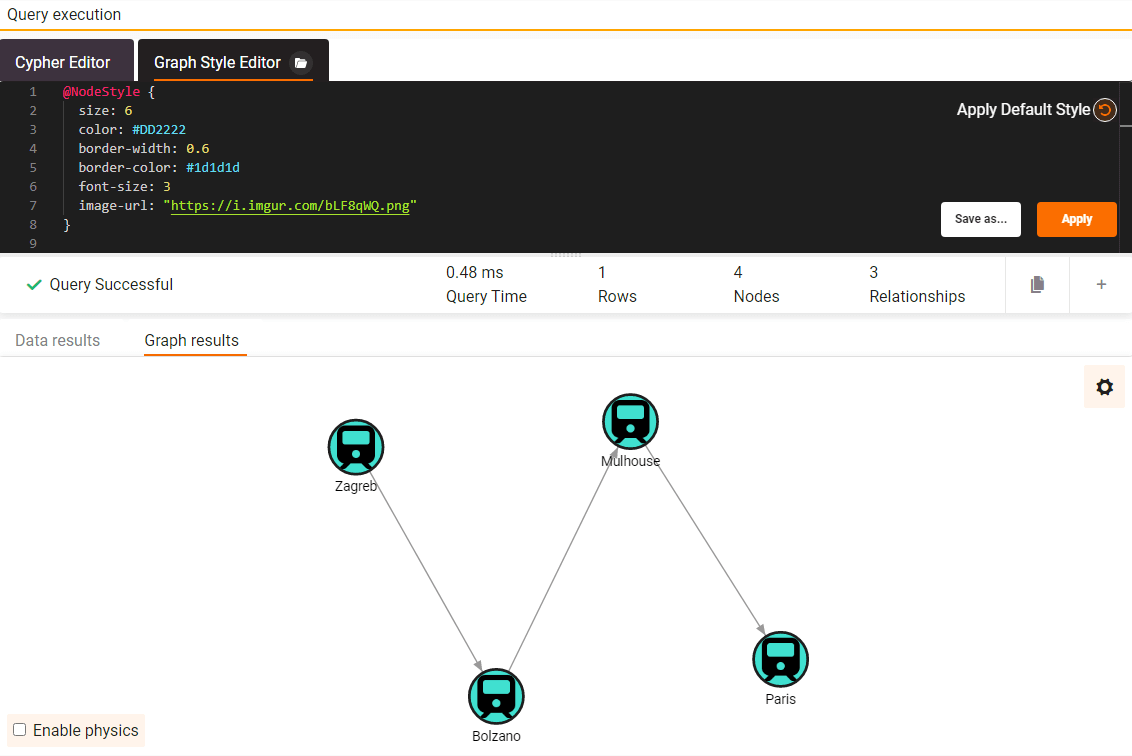
Edit the code of the Graph Style Editor in Memgraph Lab by adding the image-url property to the @NodeStyle block. Here is an example:
image-url: "https://i.imgur.com/bLF8qWQ.png"Your complete @NodeStyle block should look something like this:
@NodeStyle {
  size: 6
  color: #DD2222
  border-width: 0.6
  border-color: #1d1d1d
  font-size: 3
  image-url: "https://i.imgur.com/bLF8qWQ.png"
}
You can check the Graph Style Script @NodeStyle directive properties for additional information on the syntax.
Step 5: Apply and Review
Apply the style and review the changes.